
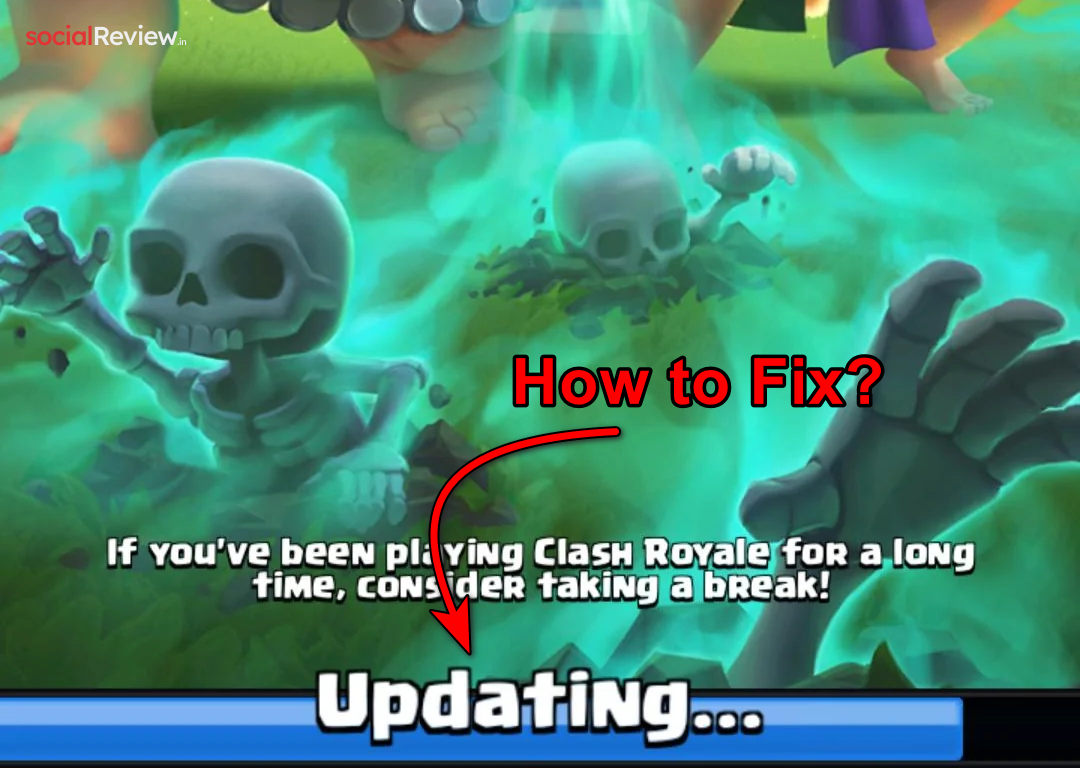
If you’ve ever launched Clash Royale after a major update only to get stuck on the updating screen, you’re not alone. This is a common issue that many players face when downloading new updates or installing the game for the first time.
The good news? This problem is usually fixable. In this guide, we’ll show step-by-step solutions to get your game running again quickly, without losing your account or progress.
Why Clash Royale Gets Stuck on Updating Screen
The update freeze often happens due to:
-
Unstable or slow internet connection – Clash Royale needs a steady connection to Supercell’s servers.
-
Temporary corrupted cache files – Old data may conflict with the new update.
-
Partial download interruptions – Even minor network drops can pause the update.
Important: The update does not restart from zero. Every time you hit Retry, the game downloads the remaining files in smaller chunks until complete.
Before trying these fixes, always check if the issue is on Supercell’s side using a site like DownDetector. If the servers are fine, the problem is likely on your device or network.
1. Use the Airplane Mode Trick
Forcing a quick disconnect and reconnect can often jumpstart the update.
Steps:
-
Turn on Airplane Mode from your device settings.

-
Open Clash Royale while Airplane Mode is still enabled.
-
Turn off Airplane Mode and ensure Wi-Fi is disconnected.
-
Tap Retry when prompted.
This interrupts the stuck session and allows the update to resume downloading.
2. Keep Clicking Reconnect
Sometimes, patience is key. Even if the game seems frozen, the update may still be downloading in the background.
-
Open the game and repeatedly click Reconnect when prompted.
-
This may take 15–20 minutes, so stay patient.
3. Switch Between Wi-Fi and Mobile Data
Network issues like high latency or packet loss can freeze updates. Switching connections often fixes this.
How to do it:
-
Start the game on Wi-Fi.
-
When the Supercell logo appears, quickly switch to mobile data or another faster connection.

-
Tap Retry to continue the update.
This simple switch helps bypass network congestion or blocked connections.
4. Clear Clash Royale Cache
Corrupted or outdated cache files can block updates. Clearing them forces the game to rebuild fresh data.
Steps on Android:
-
Go to Settings → Apps → Clash Royale.
-
Tap Storage → Clear Cache.

-
Restart the game and try the update again.
This method is safe and won’t affect your saved progress or account.
5. Reinstall Clash Royale
If all else fails, a full reinstall ensures a clean, updated copy of the game.
Steps:
-
Uninstall Clash Royale from your device.
-
Download it again from the App Store or Google Play Store.
-
Launch the game and log in with your account.
Reinstalling removes corrupted files that cache clearing or network tweaks can’t fix.




