
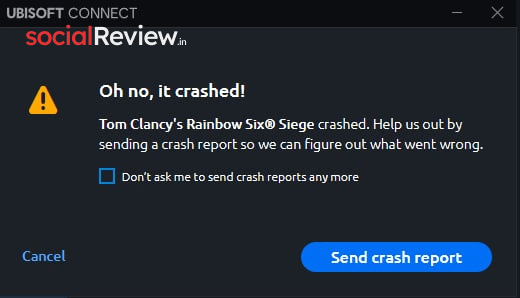
Rainbow Six Siege X players are running into a dreaded startup problem: the “Oh no, it’s crashed” error. This crash usually strikes during the game’s initialization phase—right when the rendering engine, audio pipeline, and overlays kick in. Any instability in these components can knock the game out before you even reach the main menu.
So, what causes this headache? Most often, it’s tied to:
-
DirectX and driver instability (DX12 can be buggy on certain hardware).
-
Audio processors like Equalizer APO or Nahimic interfering with the sound pipeline.
-
Third-party overlays (Steam, Discord, GeForce, RTSS) conflicting with the game engine.
But don’t worry—this guide will walk you through proven fixes to get Rainbow Six Siege X running smoothly again.
1. Switch to DirectX 11
DX12 might look good on paper, but it’s not always stable. Switching to DX11 often resolves the crash immediately.
-
Open Steam → Library.
-
Right-click Rainbow Six Siege X → Properties.
-
Under Launch Options, type:
-dx11
-
Relaunch the game and test stability.
2. Uninstall Equalizer APO (if installed)
If you’re using Equalizer APO, it could be clashing with Rainbow Six Siege X’s audio initialization. Removing it has fixed the error for many players.
-
Press Win + R → type
appwiz.cpl→ Enter. -
Find Equalizer APO → Right-click → Uninstall.
-
Restart your PC to fully clear the driver.
3. Enable V-Sync in NVIDIA Control Panel
A disabled V-Sync can overload your GPU during startup, triggering crashes. Locking the framerate with V-Sync helps stabilize performance.
-
Right-click desktop → NVIDIA Control Panel.
-
Go to Manage 3D Settings → Program Settings.
-
Add Rainbow Six Siege X.
-
Set Vertical Sync to On.
-
Apply changes.
4. Disable Steam and Discord Overlays
Overlays inject extra code that often clashes with the game’s startup process. Turning them off is a quick win.
For Steam:
-
Open Steam → Library.
-
Right-click Rainbow Six Siege X → Properties.
-
Uncheck Enable Steam Overlay while in-game.
For Discord:
-
Open Discord → User Settings → Game Overlay.
-
Toggle Enable Overlay OFF.
👉 Don’t forget to also disable GeForce Experience, Xbox Game Bar, or RTSS if you use them.
5. Verify Game Files
Corrupted or missing files can trigger the “Oh no, it’s crashed” error. Verifying integrity restores missing data.
-
Open Steam → Library.
-
Right-click Rainbow Six Siege X → Properties.
-
Go to Installed Files → Verify integrity of game files.
-
Relaunch and test.
Final Fix: Reinstall Rainbow Six Siege X
If nothing works, a fresh reinstall is your last resort. This wipes out corrupted files and installs a clean version.
Conclusion
The Rainbow Six Siege X “Oh no, it’s crashed” error is annoying but solvable. By switching to DX11, disabling overlays, or fixing audio conflicts, you can get back into the action fast.
Pro Tip: Always keep your GPU drivers, Windows updates, and DirectX libraries current to avoid future crashes.
Still stuck? Drop your issue in the comments—we’ll help troubleshoot further.





