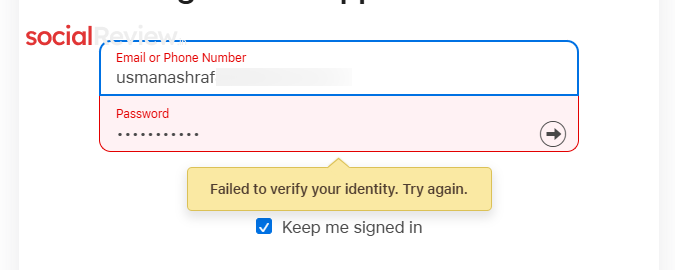
If you’ve ever tried signing in to iCloud only to be hit with the frustrating “Failed to verify your identity. Try again.” error, you’re not alone. This problem pops up on both Windows and Mac browsers, leaving users stuck outside their iCloud accounts. But don’t worry—this guide breaks down why it happens and how to fix it step by step.
Why Does the iCloud “Failed to Verify Your Identity” Error Happen?
This error means Apple can’t confirm your login attempt in real time. The usual reasons include:
-
Browser blocking essential cookies
-
Expired session tokens
-
Extensions interfering with authentication
-
Apple’s system flagging your browser as insecure
The most common trigger? Apple thinks your browser looks “unsupported” or “suspicious”—especially if you’re using ad-blockers, privacy tools, or outdated extensions.
How to Fix iCloud’s Identity Verification Error (Step by Step)
1. Check Apple’s Server Status First
Sometimes, the issue isn’t on your end.
-
Visit Apple’s System Status Page.

-
Look for “iCloud Account & Sign In.”

-
If it shows downtime, you’ll have to wait for Apple to fix it.
2. Try Using a VPN
Apple can block logins from unusual locations. A VPN changes your virtual location and often bypasses these restrictions.
-
Use a browser VPN extension or a standalone VPN app.
-
Reconnect and try logging into iCloud again.
3. Sign In Through Apple’s Main Account Page
Refreshing your session usually works.
-
Go to account.apple.com.
-
Log in with your Apple ID.

-
Once inside, head to iCloud.com and try again.

4. Remove Extensions or Use Incognito Mode
Extensions are troublemakers when it comes to Apple logins.
4.1 Test in Incognito Mode
-
Open Incognito (CTRL + SHIFT + N in Chrome).

-
Visit iCloud.com and sign in.
-
If it works here, an extension is blocking cookies.
4.2 Disable Problematic Extensions
-
Go to your browser menu → Extensions > Manage Extensions.
-
Turn them off one by one, testing iCloud login after each.
-
Remove the one causing the issue.