A PC fan that never stops running can be frustrating. The constant noise is distracting, and it often signals deeper issues like overheating, blocked vents, or background software consuming too much power. The good news? In most cases, you can fix it yourself with simple steps—no need for an expensive repair shop visit.
This guide will walk you through practical solutions to stop your computer fan from spinning nonstop and keep your system cool and quiet.
Why This Matters
Ignoring a continuously running fan can:
-
Shorten your PC’s hardware lifespan.
-
Reduce performance due to overheating.
-
Indicate hidden malware or faulty apps.
-
Distract you during work or gaming sessions.
Fixing it early ensures smoother, quieter performance and extends your computer’s health.
Step-by-Step Solutions
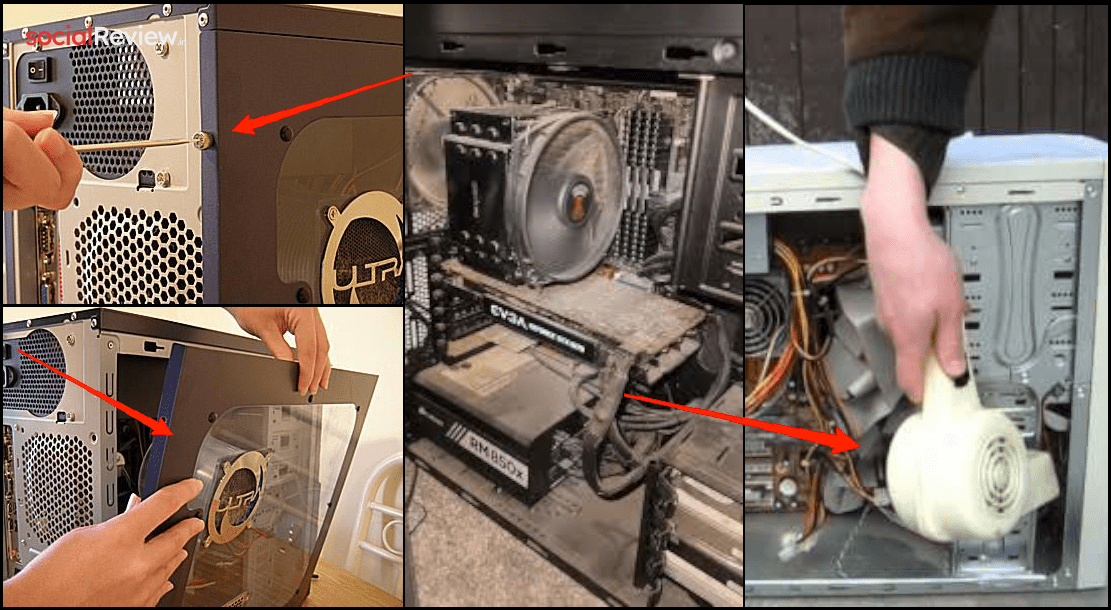
Step 1: Check for Overheating or Blocked Vents
-
Open your PC case or laptop vents using the right tools.
-
Inspect airflow paths with a flashlight.
-
Clean out dust using compressed air or a hairdryer on a cool setting.
-
Restart and observe if the fan noise reduces.
👉 Often, dust buildup is the #1 reason fans won’t stop running.
Step 2: Inspect RGB or Extra Connections
Some users report fan issues caused by faulty RGB lighting connections.
-
Unplug the RGB connector linked to your motherboard.
-
Update drivers via Windows Update or tools like MyASUS.
-
Restart and check if fan behavior improves.
Step 3: Uninstall Third-Party Fan Control Apps
-
Go to Control Panel > Programs & Features.
-
Uninstall any fan utility apps.
-
These apps may override BIOS settings and cause fans to run nonstop.
Step 4: Reapply Thermal Paste
If your CPU isn’t cooling properly, the fan will keep spinning.
-
Open your CPU heatsink carefully.
-
Clean old thermal paste with tissue paper.
-
Apply a fresh layer evenly.
-
Reassemble and restart.
Step 5: Remove Shady Browser Extensions
-
Open your browser → Extensions/Add-ons.
-
Delete unknown or suspicious extensions.
-
Restart PC to see if resource usage drops.
Step 6: Check for Crypto Mining Malware
Malware often forces CPUs to overwork, keeping fans on full speed.
-
Open Task Manager → Startup Apps.
-
Disable unknown or suspicious programs.
-
Run a full antivirus scan.
Common Mistakes to Avoid
-
Ignoring dust buildup for months.
-
Using multiple fan control utilities.
-
Forgetting to update BIOS and drivers.
-
Assuming loud fans are “normal” without checking CPU temps.
Extra Tips
-
Use a laptop cooling pad for extra airflow.
-
Keep your PC in a ventilated area.
-
Schedule monthly cleaning for desktops.
-
Monitor CPU temps with tools like HWMonitor or CoreTemp.
FAQs
Q1. Is it dangerous if my PC fan runs nonstop?
Not always. Fans are designed to protect hardware, but if it’s constant under light load, it signals another issue.
Q2. Do I need to replace my fan?
Only if it’s faulty. Try the fixes above first.
Q3. Can software cause this issue?
Yes—malware, mining apps, or faulty extensions can overwork your CPU.
Check for all solutions